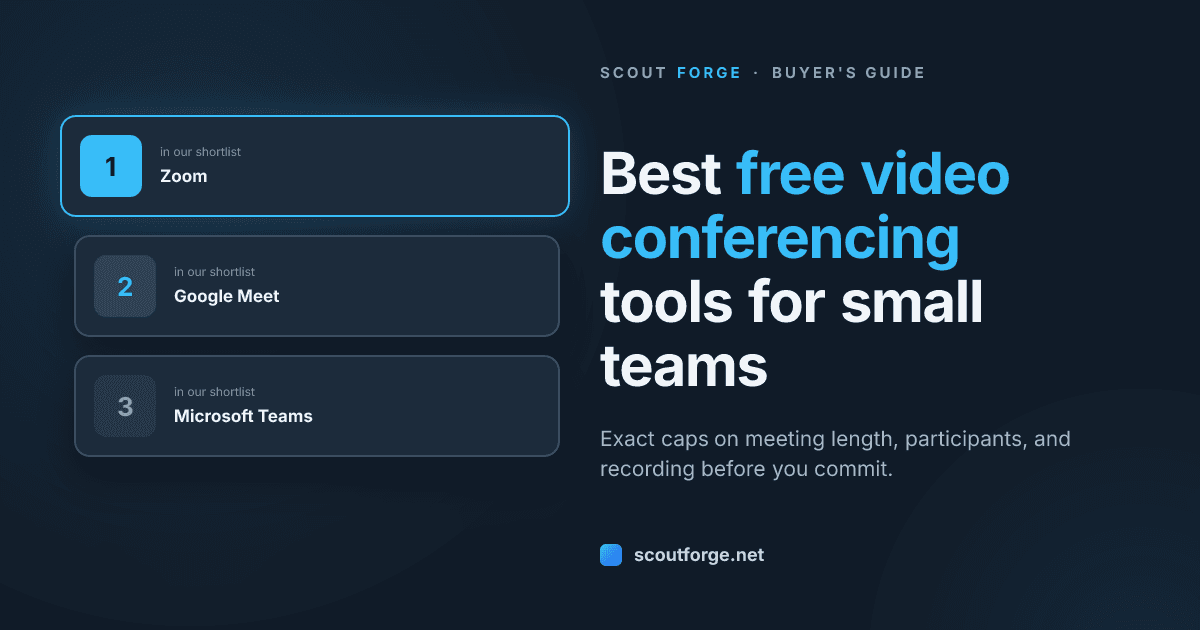
The real test of a free video conferencing tool isn’t the first call you make—it’s the first client call that cuts off at the 40-minute mark because you didn’t read the fine print. Most roundups rank tools by feature count. They’ll tell you Zoom has virtual backgrounds and Google Meet has noise cancellation. What they won’t tell you is that the free plan you picked in month one might embarrass you in month two, right when a prospect is about to sign.
We’ve spent weeks digging into the actual free-tier caps of the major video conferencing tools. Not the marketing pages, but the support docs, the pricing tables, and the fine print. We found four caps that matter more than any feature list: participant limits, meeting-length limits, cloud recording availability, and screen-sharing restrictions. One of these will be the reason you eventually pay. The question is which one, and when.
We score every app on Scout Forge across six dimensions—design, usability, speed, security, accessibility, and growth—on a 0–100 scale. Money cannot buy a score. For this guide, we weighted the free-tier caps heavily because a tool that’s beautiful but cuts you off mid-pitch isn’t useful to anyone. Here’s what we found.
How We Scored These Tools (Six Dimensions)
Every app listed on Scout Forge is evaluated independently against six dimensions. You can read the full breakdown on our methodology page, but here’s the short version: we look at how an app is designed, how easy it is to use, how fast and reliable it is, how it handles security and privacy, how accessible it is to different users, and whether it’s actively growing and improving. For this comparison, we put extra weight on the free-tier experience because that’s what you’re here to evaluate.
A tool that scores 80+ on Scout Forge generally delivers a solid experience across all six dimensions. A score in the 60s or 70s means there’s a meaningful trade-off—usually in reliability, design, or the free-tier limits themselves. We’ll reference these scores where relevant, but the core of this guide is the cap table below. That’s what you’ll want to bookmark.
The Free-Tier Caps Table: Every Tool Side by Side
Before we dive into the nuances, here’s the comparison that matters. These are the hard limits on the free plans of the major video conferencing tools as of November 2026. Every number here is sourced from official plan pages or support documentation. Where we couldn’t verify a number, we’ve noted it.
| Tool | Max Participants (Free) | Meeting Length Limit (Free) | Cloud Recording (Free) | Screen Sharing (Free) | Notable Free-Tier Catch |
|---|---|---|---|---|---|
| Zoom | 100 | 40 min (group); unlimited (1:1) | No (local only) | Yes, multi-share | 40-min group limit is the hard stop most teams hit first |
| Google Meet | 100 | 60 min (group, 3+); 24 hrs (1:1) | No (requires Workspace) | Yes | Recording locked behind any paid Google Workspace plan |
| Microsoft Teams | 100 | 60 min (group); 30 hrs (1:1) | No (5 GB cloud storage for files, not recordings) | Yes | 5 GB storage is for files, not meeting recordings |
| Cisco Webex | 100 | 40–50 min (varies) | No (local only) | Yes | Time limit can fluctuate; local recording fills device storage fast |
| Whereby | 4 | 30 min | No | Yes | Tiny participant cap; free plan reduced to 30 min in Oct 2026 |
| GoTo Meeting | N/A | N/A | N/A | N/A | No permanent free tier; 14-day trial only |
Riverside, Jitsi Meet, Discord, and Zoho Meeting offer free tiers with varying degrees of usefulness, but we couldn’t verify their exact 2026 caps from primary sources. We’ll cover what we know about each in the sections below, with appropriate hedging.
The 40-Minute Trap: Meeting-Length Limits That Bite Mid-Call
The most common free-tier complaint we hear isn’t about missing features. It’s about the timer. Zoom’s 40-minute group limit is the poster child for this problem, but it’s not alone. Google Meet and Microsoft Teams both cap group calls at 60 minutes on their free tiers. Webex hovers around 40 to 50 minutes. Whereby now cuts you off at 30 minutes.
Here’s how the timer actually works on the three most popular tools, because the details matter when you’re scheduling back-to-back client calls.
Zoom starts a countdown at the 30-minute mark with a warning. At 40 minutes, the meeting ends for everyone. There’s no pause button, no grace period, and no way to extend it without the host upgrading to a paid plan. The workaround—hanging up and starting a new meeting—works exactly once before your client starts questioning your professionalism. One-on-one calls on Zoom are unlimited, which makes it viable for solo founders doing sales calls but useless for team standups or client presentations with multiple stakeholders.
Google Meet is slightly more generous at 60 minutes for group calls on free personal accounts. The timer appears at 55 minutes with a prompt to upgrade. When time runs out, the call drops. Like Zoom, 1:1 calls are effectively unlimited (24 hours), which covers most one-on-one scenarios. The catch is that Google enforces the 60-minute cap on any call with three or more participants, even if two of them are internal team members and one is a client.
Microsoft Teams matches Google Meet’s 60-minute group cap on the free plan, but extends 1:1 calls to a whopping 30 hours. That’s generous for pair programming or long working sessions, but the group cap still applies to team meetings.
The workaround that stops being acceptable: Scheduling two 40-minute meetings back-to-back with a five-minute buffer. It works for internal standups. It does not work for client pitches, board presentations, or any call where you need to build trust. If your team is doing any of those, you’re on a countdown to a paid plan. The question is which paid plan, and we’ll get to that.
Best Overall Free Video Conferencing for Small Teams
Zoom remains the default choice for most small teams, and for good reason. The free Basic plan supports up to 100 participants, includes screen sharing with co-annotation, and offers local recording. The interface is familiar to almost everyone, which reduces the friction of getting external participants into a call. The 40-minute group limit is the obvious pain point, but for teams that mostly run internal standups under 40 minutes or one-on-one client calls, it’s hard to beat.
What Zoom’s free plan does well: the video and audio quality are consistently solid, the virtual background feature works reliably even without a green screen, and the chat and reactions keep meetings engaging. The screen-sharing experience is smooth, with the ability to share a specific window, your entire screen, or a portion of your screen. Multi-share lets multiple participants share simultaneously, which is useful for design reviews.
Where it falls short: the 40-minute group limit is a hard stop. There’s no cloud recording on the free plan—you’re limited to local recordings that eat up your hard drive space and can’t be easily shared. And Zoom’s free plan doesn’t include AI companion features like meeting summaries or smart chapters that have become table stakes in 2026.
Who should pick it: teams of 2–10 people who do mostly internal meetings under 40 minutes and occasional one-on-one client calls. If your workflow involves recording and sharing meetings regularly, you’ll outgrow the free plan quickly. When you do, tools like RecordFlow (scores 75 on Scout Forge) can automate backing up Zoom cloud recordings to Google Drive, which is a handy bridge when you upgrade to a paid Zoom plan.
Best Free Option If You Already Live in Google or Microsoft
If your team already uses Google Workspace or Microsoft 365, the free tiers of Google Meet and Microsoft Teams are compelling—not because they’re better than Zoom, but because they’re already there.
Google Meet is integrated directly into Gmail and Google Calendar. Scheduling a meeting adds the Meet link automatically. The free tier gives you 100 participants and 60-minute group calls, which buys you an extra 20 minutes over Zoom’s free plan. The interface is clean and the noise cancellation is excellent. But there’s a significant catch: recording is completely unavailable on free personal accounts. You need at least a paid Google Workspace plan to record meetings. If your team relies on meeting recordings for documentation, onboarding, or client deliverables, Google Meet’s free tier is a non-starter.
Microsoft Teams free plan offers 100 participants, 60-minute group calls, and 5 GB of cloud storage. That storage is for files shared in chats and channels, not for meeting recordings. Like Google Meet, recording isn’t available on the free tier. Teams’ interface is more complex than Meet’s, with channels, tabs, and app integrations that can feel overwhelming if you’re just looking for video calls. But if your team already uses Microsoft 365 apps, the integration is seamless.
The ecosystem lock-in trade-off: both tools work best when your team is fully committed to their respective ecosystems. Google Meet shines with Google Calendar, Gmail, and Drive. Teams shines with SharePoint, OneDrive, and the Office apps. If you’re platform-agnostic, Zoom’s standalone experience is cleaner. If you’re already paying for Google Workspace or Microsoft 365, using the built-in video tool is the path of least resistance—just know that the free tier alone won’t give you recording.
Best Free Tool for Screen Sharing and Quick Standups
For lightweight, no-fuss screen sharing and quick team check-ins, three tools stand out: Whereby, Jitsi Meet, and Discord. Each has a different set of trade-offs.
Whereby is browser-based and dead simple. You create a custom room link (you get one on the free plan), share it, and participants join without downloading anything. The free plan caps meetings at 30 minutes and 4 participants as of October 2026, which is a significant reduction from previous limits. Screen sharing works well, and the interface is clean enough that you can send a link to a non-technical client without a preamble. For a two-person screen-share session that’s over in 20 minutes, Whereby is excellent. For anything bigger or longer, it’s not.
Jitsi Meet is open-source and can be self-hosted or used through public instances. There are no strict time limits or participant caps on self-hosted instances, though performance degrades with large groups. Screen sharing is included, and you can lock rooms with a password. The trade-off is reliability: public instances can be slow or unavailable, and self-hosting requires technical effort. For privacy-conscious teams who want full control, Jitsi is worth the setup. For everyone else, it’s a backup option.
Discord isn’t a traditional video conferencing tool, but its voice and video channels are surprisingly capable for internal team use. There are no meeting time limits, and the always-on nature of voice channels makes it perfect for quick standups. The catch: Discord wasn’t built for business meetings. There’s no waiting room, no calendar integration, and inviting external clients means asking them to join a Discord server, which can feel unprofessional. For internal dev teams already using Discord, it’s a natural extension. For client-facing calls, stick with Zoom or Meet. If your team uses Discord heavily, VibeBot (scores 86 on Scout Forge) is an AI-powered bot builder that can automate server management and moderation, which is useful when your Discord server doubles as a workspace.
Best Free Tool for Recording and Content-Quality Calls
If recording is your primary need—for podcasts, interviews, or content creation—the free tiers of the tools we’ve covered won’t cut it. Zoom offers local recording, but no cloud storage. Google Meet and Teams lock recording behind paid plans entirely. That’s where recording-first tools come in, though their free tiers are often limited.
Riverside is built for high-quality remote recording. It captures local audio and video from each participant, so the recording quality doesn’t depend on internet stability during the call. This is a significant advantage over Zoom or Meet, where a participant’s choppy connection results in choppy recording. If you’re considering Riverside, check the current plan page and test an export before committing to a production workflow—free-tier recording hour caps and participant limits can change, and we couldn’t verify the exact numbers as of November 2026.
For teams that need meeting recording rather than content recording, the reality is that you’ll likely need to pay for at least one host license on Zoom, Meet, or Teams. We’ll cover upgrade paths in the next section. In the meantime, tools like Recall.ai (scores 81 on Scout Forge) provide a unified API for recording and transcribing meetings across platforms, which is useful if your team uses multiple conferencing tools and needs a single recording pipeline. And if you’re a Mac user running Zoom, Meeting Mind (scores 79) is a menu bar app that automatically records, transcribes, and summarizes Zoom meetings with full local processing—no audio data ever leaves your machine.
Best Free Tool for Webinars and Larger Audiences
Webinars are a different beast from team meetings. You need registration pages, attendee management, and often a presenter-only backstage. Most free video conferencing tiers aren’t built for this, but a couple of tools offer webinar-capable free plans.
Zoho Meeting offers a free plan that includes meeting features, though the exact participant and recording limits weren’t verifiable from primary sources as of November 2026. Zoho’s pricing has historically been competitive, with paid plans starting at low monthly rates. If you’re already in the Zoho ecosystem, it’s worth exploring. If not, the free tier may be too limited for anything beyond small internal webinars.
Cisco Webex Free plan supports up to 100 participants with screen sharing and local recording, making it technically capable of hosting larger presentations. The 40–50 minute time limit applies, which is tight for a full webinar with Q&A. Webex’s paid plans unlock more features, but the free tier can work for short, focused presentations.
For most small teams, the webinar question is moot on free plans. If you’re doing occasional large-audience presentations, you’re better off using Zoom or Meet’s free tier for the presentation itself and handling registration through a separate tool like Google Forms. Once webinars become a regular part of your workflow, budget for a paid plan.
Which Tools Downgrade Gracefully When You Outgrow Free
Outgrowing a free plan isn’t a failure—it’s a sign your team is growing. The question is how painful the upgrade is. Here’s what the first paid tier looks like for the major tools, and how much friction you’ll face when you switch.
Zoom Pro is the most straightforward upgrade path. As of November 2026, it starts at roughly $14.16 per user per month billed annually. The Pro plan unlocks longer group meetings, cloud recording storage, and the AI companion features. You can start with one Pro license for the host and keep the rest of your team on free accounts. That’s the most common upgrade pattern we see: one paid host, everyone else free.
Google Meet recording and longer meetings require a Google Workspace plan. The catch: you’re paying for the whole Workspace suite, not just Meet. If you don’t need Gmail, Drive, and Docs for your domain, you’re paying for features you won’t use. Check the current Workspace pricing page for the exact per-user cost and storage allocation before committing.
Microsoft Teams paid plans start around $4 per user per month, according to the official pricing page. Like Google, the full feature set is tied to broader Microsoft 365 plans. The entry-level paid tier is the cheapest way to unlock longer meetings if you don’t need the Office apps.
Whereby Pro is $10.99 per host per month. The jump from 4 participants on the free plan to more on Pro is significant for small teams, but check the current Pro plan page for the exact participant cap and whether cloud recording is included.
GoTo Meeting doesn’t offer a free tier at all—only a 14-day trial. Paid plans start around $12 per organizer per month. If you’re considering GoTo Meeting, you’re paying from day one.
The migration friction question: switching from one video conferencing tool to another is less painful than switching project management tools, but it’s not zero. Your team has to learn a new interface, your recurring meeting links change, and any integrations with your calendar or CRM need to be reconnected. If you’re migrating Teams data between tenants, SysInfo Microsoft Teams Migration Tool (scores 81 on Scout Forge) handles teams, channels, chats, and permissions migration. Zoom is the easiest to start with and the easiest to upgrade within, which is part of why it remains our default recommendation.
Verdict: Which Free Plan to Start With (and When to Pay)
Here’s the decision matrix, based on team size and primary use case. No tool is perfect for everyone, but the patterns are clear.
If you’re a solo founder or a team of 2–5 doing mostly client calls: Start with Zoom Basic. The 1:1 calls are unlimited, the 40-minute group limit rarely matters for small-team client meetings, and local recording covers your documentation needs. Upgrade to Zoom Pro when you need cloud recording or when group meetings regularly run over 40 minutes.
If your team of 3–10 is already on Google Workspace: Use Google Meet. The 60-minute group limit gives you breathing room, and the calendar integration saves scheduling friction. Upgrade to a Workspace plan with recording when you need to document meetings. If you’re not on Workspace, Meet’s free tier is still viable, but the recording limitation is a dealbreaker for many teams.
If your team lives in Microsoft 365: Use Microsoft Teams. The integration with Office apps is the main selling point. The 60-minute group limit and lack of recording on the free tier are the same constraints as Meet. Upgrade to a paid Microsoft plan when you need more.
If you need quick, no-download screen sharing with 1–3 other people: Whereby is excellent for this narrow use case. The 30-minute, 4-participant cap is tight, but for ad-hoc screen shares with a client or a quick internal review, it’s the fastest option. Upgrade to Pro when you need more participants or longer calls. If you want something even more minimalist, Ahey (scores 68 on Scout Forge) offers instant, no-download browser-based calls with shareable URLs—though it lacks the polish of Whereby.
If you’re an internal dev team that already uses Discord: Use Discord for standups and pair programming. It’s not client-ready, but it’s frictionless for internal use, and there are no time limits.
The trigger to pay is almost always recording. If your team needs to record meetings—for documentation, onboarding, compliance, or client deliverables—you will pay for at least one host license. The only question is which platform you’re already on when that moment arrives.
FAQ
Is Zoom free forever? Zoom’s Basic plan has been free for years and there’s no indication that will change, but the terms can shift. The 40-minute group limit and lack of cloud recording are the permanent trade-offs. Zoom monetizes through paid plans and add-ons, not by removing the free tier.
Can you record on Google Meet free? No. Recording requires a paid Google Workspace plan. Free personal accounts cannot record meetings. Local workarounds like third-party screen recorders exist, but they won’t capture separate audio tracks or participant-level video the way native recording does.
What’s the longest free meeting I can have? For 1:1 calls, Microsoft Teams free allows up to 30 hours and Google Meet free allows up to 24 hours. For group calls, Google Meet and Microsoft Teams both cap at 60 minutes on their free tiers, while Zoom caps at 40 minutes. Discord has no time limits on voice or video channels.
Do free plans include dial-in numbers? Dial-in availability varies by region and plan. Check the current plan page for your tool and region before relying on phone dial-in as a backup. This is one of the features that frequently changes between plan tiers and over time.
Is screen sharing limited on free plans? On Zoom, Google Meet, and Microsoft Teams, screen sharing is fully available on free plans. Whereby includes screen sharing on its free plan but caps participants at 4 and meetings at 30 minutes. If you need to protect sensitive information during screen shares, Safe Screen Share (scores 77 on Scout Forge) is a lightweight browser extension that lets you blur or hide specific areas in real time.
Which free video conferencing tool is best for privacy? Jitsi Meet, when self-hosted, gives you full control over your data and no third-party server involvement. Among the commercial tools, privacy features vary by plan tier. If privacy is critical, self-host Jitsi or evaluate the paid tiers of the major tools, which typically offer more security controls than their free counterparts.
If you’re evaluating your first video conferencing stack, this comparison should give you a clear starting point. For more head-to-head breakdowns of free tools across other categories, browse our Productivity category or read our guide on how to compare SaaS tools without being misled by sponsored rankings. And if you’re building a video conferencing tool or a complementary app, list your product on Scout Forge—it’s free, and every app gets the same independent scoring, no exceptions.
